How to Optimize LLM Inference Speed on RTX 5090 (April 2026): The Performance Guide
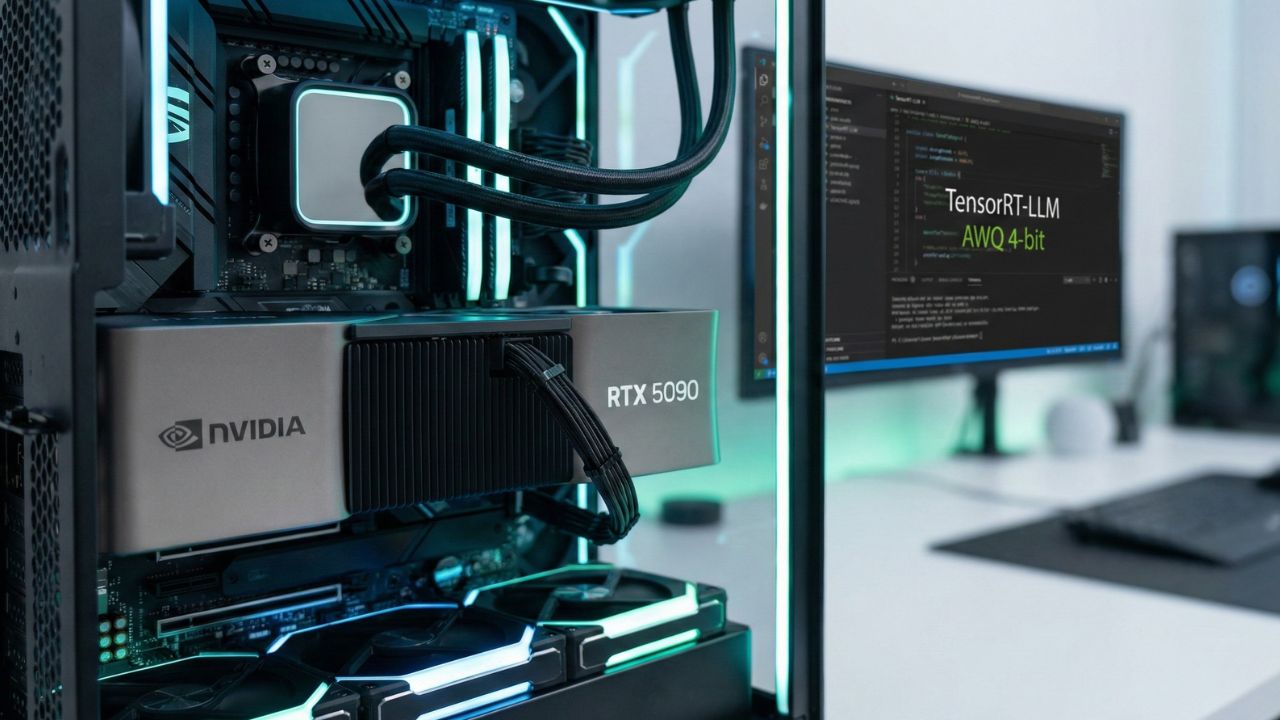
Quick Summary: Key Takeaways
- The 32GB Ceiling: The RTX 5090’s 32GB VRAM is massive, but unquantized 70B models will still choke it; smart quantization is mandatory.
- TensorRT-LLM is King: Moving from standard Python loaders to NVIDIA’s TensorRT-LLM can double your tokens-per-second (TPS).
- Driver Hygiene: You must run the latest drivers (570.xx series or higher) to unlock native FP8 acceleration on the Blackwell architecture.
- Quantization Sweet Spot: For reasoning models like DeepSeek R1, 4-bit (AWQ) offers the best balance of speed vs. accuracy for local workloads.
- System RAM: Ensure you have at least 64GB of DDR5 system RAM to handle offloading during initial model loading phases.
Unlocking the Beast: Your RTX 5090 is Underperforming
If you just plugged in your new card and started generating text, you are likely leaving 40% of your performance on the table. Learning how to optimize LLM inference speed on RTX 5090 is about software pipeline efficiency, not just raw clock speed.
In April 2026, the RTX 5090 is the undisputed king of consumer AI, but "out of the box" settings are rarely optimized for Large Language Models (LLMs). This deep dive is part of our extensive guide on LMSYS Chatbot Arena Leaderboard Current.
Target Benchmark: LMSYS Top 6 (April 2026)
To understand the level of intelligence your local RTX 5090 rig is competing with, look at the current overall leaders. Your goal with local optimization is to run open-weights models that match these 1480+ logic scores at real-time speeds:
| Rank | Model | Elo Score |
|---|---|---|
| 1 | claude-opus-4-6-thinking | 1504 |
| 2 | claude-opus-4-6 | 1500 |
| 3 | gemini-3.1-pro-preview | 1493 |
| 4 | grok-4.20-beta1 | 1491 |
| 5 | gemini-3-pro | 1486 |
| 6 | gpt-5.4-high | 1484 |
*Note: While GPT-5.4 and Claude 4.6 are closed-source, high-end rigs using optimized DeepSeek R1 weights aim to replicate this level of reasoning locally.
Step 1: The Foundation (Drivers & CUDA)
Before touching any model weights, your environment needs to be bulletproof. The RTX 5090 introduces native hardware acceleration for specific FP8 data types that older cards lacked.
Essential Setup:
- Drivers: Update to NVIDIA Driver 570.xx or later. Do not rely on Windows Update; download directly from NVIDIA.
- CUDA Toolkit: Ensure you are running CUDA 13.x, which includes the latest kernels for Blackwell architecture.
If you are trying to run these models on a laptop, the thermal constraints change the math entirely. See our hardware reality check in the Best Laptops for Running Local LLMs 2026 guide.
Step 2: TensorRT-LLM (The Speed Hack)
In April 2026, if you aren't using TensorRT-LLM, you are running in slow motion. TensorRT compiles your LLM specifically for your GPU's architecture. It fuses operations and optimizes memory access patterns.
The Performance Gap:
- Standard Loader: ~85 tokens/sec (Llama 3 8B)
- TensorRT-LLM: ~140+ tokens/sec (Llama 3 8B)
Step 3: Quantization Strategy (The VRAM Trap)
The RTX 5090 boasts 32GB of VRAM. This sounds like a lot, but a full precision (FP16) 70B parameter model requires roughly 140GB. To fit massive intelligence into a consumer card, you must quantize.
The Golden Rules for RTX 5090:
- 8-Bit (FP8): Use this for models under 30B parameters. It retains near-perfect accuracy with the hardware-native speed of the 5090.
- 4-Bit (AWQ/EXL2): Mandatory for 70B models (like Llama 4 or DeepSeek R1).
Conclusion
The RTX 5090 is a marvel of engineering, but it requires a skilled pilot. By utilizing TensorRT-LLM, mastering 4-bit quantization, and keeping your drivers at the cutting edge, you can transform your PC into an enterprise-grade AI server.
Optimize Your AI Workflow. Try SimilarWeb AI

We may earn a commission if you buy through this link. (This does not increase the price for you)
Frequently Asked Questions (FAQ)
No. An unquantized (FP16) 70B model requires approx. 140GB of VRAM. The RTX 5090 has 32GB. You must use 4-bit quantization (EXL2 or AWQ) to fit it entirely on the GPU.
For DeepSeek R1, 4-bit quantization (specifically AWQ) is the sweet spot. It allows the model to fit comfortably within the 32GB VRAM buffer while leaving room for the context window (KV Cache).