How to Run DeepSeek R1 Locally (April 2026): The Developer’s Guide to Private AI
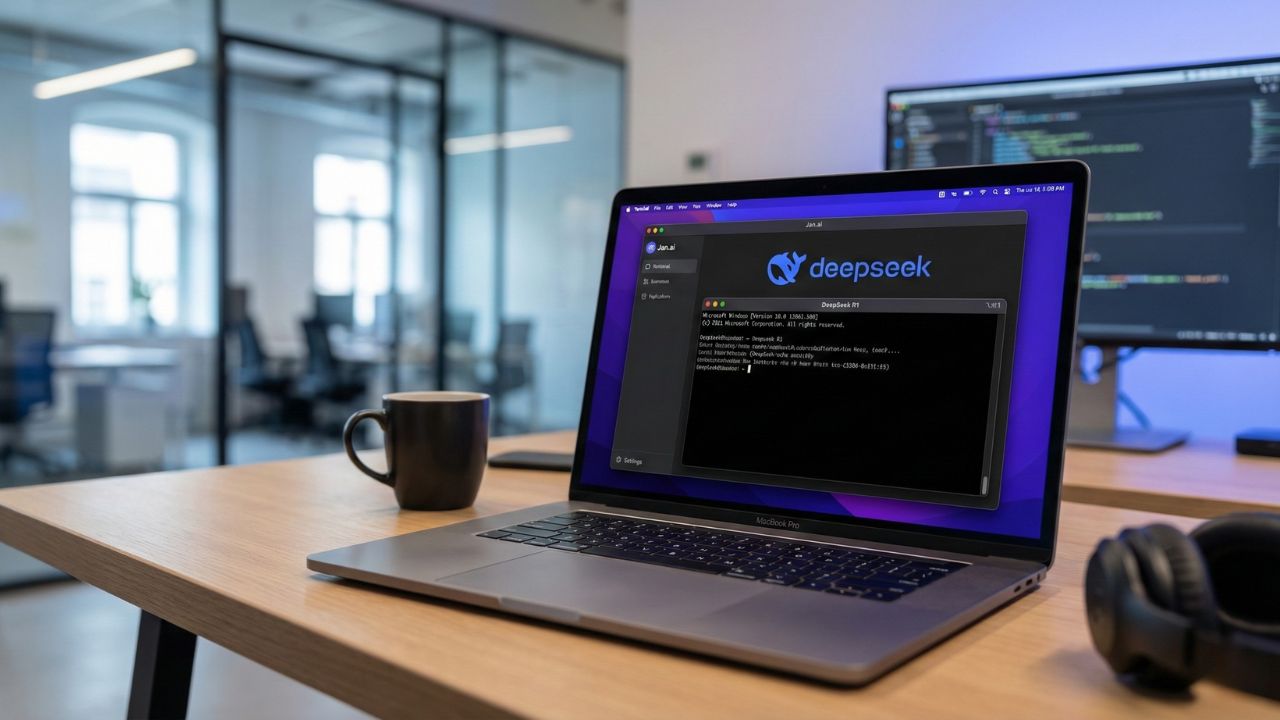
Key Takeaways: Quick Summary
- Privacy First: Running DeepSeek R1 locally ensures your proprietary code never leaves your machine or touches an external API server.
- Hardware Reality: You don't need a data center; a single RTX 5090 or MacBook Pro M4 Max can handle quantized versions of R1 efficiently in April 2026.
- The Tooling Stack: We recommend Ollama for Windows/Linux and Jan.ai for Mac users to get up and running in under 5 minutes.
- Cost vs. Speed: Local inference eliminates token costs entirely, providing a high-ROI alternative to monthly API subscriptions.
- Quantization Strategy: 4-bit (Q4_K_M) remains the "sweet spot" for balancing coding logic accuracy with limited VRAM.
In 2026, the question isn't if you should use AI for development, but where that AI should live. Relying on cloud APIs for sensitive intellectual property is becoming a massive compliance risk. This is why mastering how to run DeepSeek R1 locally for developers has become the most critical skill for engineering teams this year.
This deep dive is part of our extensive guide on LMSYS Chatbot Arena Leaderboard Current. While cloud giants lead the charts, local deployment allows you to replicate frontier-level logic on your own silicon.
Target Benchmark: LMSYS Top 6 (April 2026)
To understand the level of intelligence your local DeepSeek R1 setup is competing with, look at the current overall leaders. Your goal with local optimization is to match these 1480+ logic scores without the $15/month subscription fee:
| Rank | Model | Elo Score |
|---|---|---|
| 1 | claude-opus-4-6-thinking | 1504 |
| 2 | claude-opus-4-6 | 1500 |
| 3 | gemini-3.1-pro-preview | 1493 |
| 4 | grok-4.20-beta1 | 1491 |
| 5 | gemini-3-pro | 1486 |
| 6 | gpt-5.4-high | 1484 |
Hardware Requirements: The "Can I Run It?" Checklist
DeepSeek R1 is a powerhouse, but thanks to distillation and quantization, it is tamable on modern consumer rigs.
Minimum Specs for Distilled Models (7B - 32B):
- GPU: NVIDIA RTX 4070 or better (12GB VRAM minimum).
- RAM: 32GB System RAM.
- Storage: 50GB NVMe SSD space.
Recommended Specs for Full R1 Performance (70B+ Quantized):
- GPU: NVIDIA RTX 5090 (32GB VRAM) or Dual 4090s.
- Mac Alternative: MacBook Pro M4 Max with 64GB+ Unified Memory.
If you are looking to upgrade your setup, check our detailed breakdown of the Best Laptops for Running Local LLMs 2026.
Step-by-Step: Installing DeepSeek R1 with Ollama
For most developers in April 2026, Ollama remains the gold standard for ease of use. It abstracts away the complex PyTorch dependencies and allows you to pull models just like Docker images.
- Download Ollama: Visit the official site and grab the installer.
- Pull the Model: Open your terminal and run
ollama run deepseek-r1:70bfor the balanced reasoning variant. - Integrate with IDE: Connect Ollama to VS Code or Cursor by pointing the model endpoint to
http://localhost:11434/v1.
Pro Tip: If you are strictly limited on VRAM, the deepseek-r1:8b model offers surprising competence for basic Python refactoring tasks without overheating your laptop.
The Mac Advantage: Running R1 on M4 with Jan.ai
Apple's Unified Memory Architecture continues to punch above its weight class. If you are on a Mac, we recommend Jan.ai over Ollama for its superior UI and automatic detection of the Neural Engine in the M4 chip.
Simply search for "DeepSeek R1" in the Jan Hub, select the "GGUF Q4_K_M" quantization, and hit start. This setup allows you to load the 70B variant comfortably even on a high-spec MacBook Pro.
Conclusion
Learning how to run DeepSeek R1 locally for developers is the ultimate leverage in April 2026. It gives you the reasoning power of a frontier model with the privacy of an air-gapped machine. Whether you are using a dedicated NVIDIA workstation or a high-memory Mac, the tools have finally matured enough to make local AI the preferred choice for serious software engineering.
Optimize Your AI Workflow. Try SimilarWeb AI

We may earn a commission if you buy through this link. (This does not increase the price for you)
Frequently Asked Questions (FAQ)
The full 671B parameter model is massive. To run it unquantized, you would need enterprise-grade H100 clusters. However, developers typically run the "Distilled" versions (70B or 32B), which run comfortably on high-end consumer hardware like the RTX 5090 or Mac Studio.
Yes, absolutely. An RTX 5090 with 32GB of VRAM can easily run the 70B parameter version of DeepSeek R1 if you use 4-bit quantization (Q4).
We recommend Q4_K_M (4-bit). Testing shows that dropping to 4-bit saves massive amounts of VRAM with less than a 2% drop in coding accuracy compared to the uncompressed FP16 model.
8B Model: ~6 GB VRAM. 32B Model: ~18 GB VRAM. 70B Model (Q4): ~40 GB VRAM (Requires dual-GPUs or Mac Unified Memory).
It depends on your hardware. On an RTX 5090, token generation is often faster than the API because you eliminate network latency.
Use the ChatOllama library. Instantiate the class with model="deepseek-r1" and base_url="http://localhost:11434".