Ollama vs LM Studio: Why GUI-Based Local AI Kills Developer Productivity
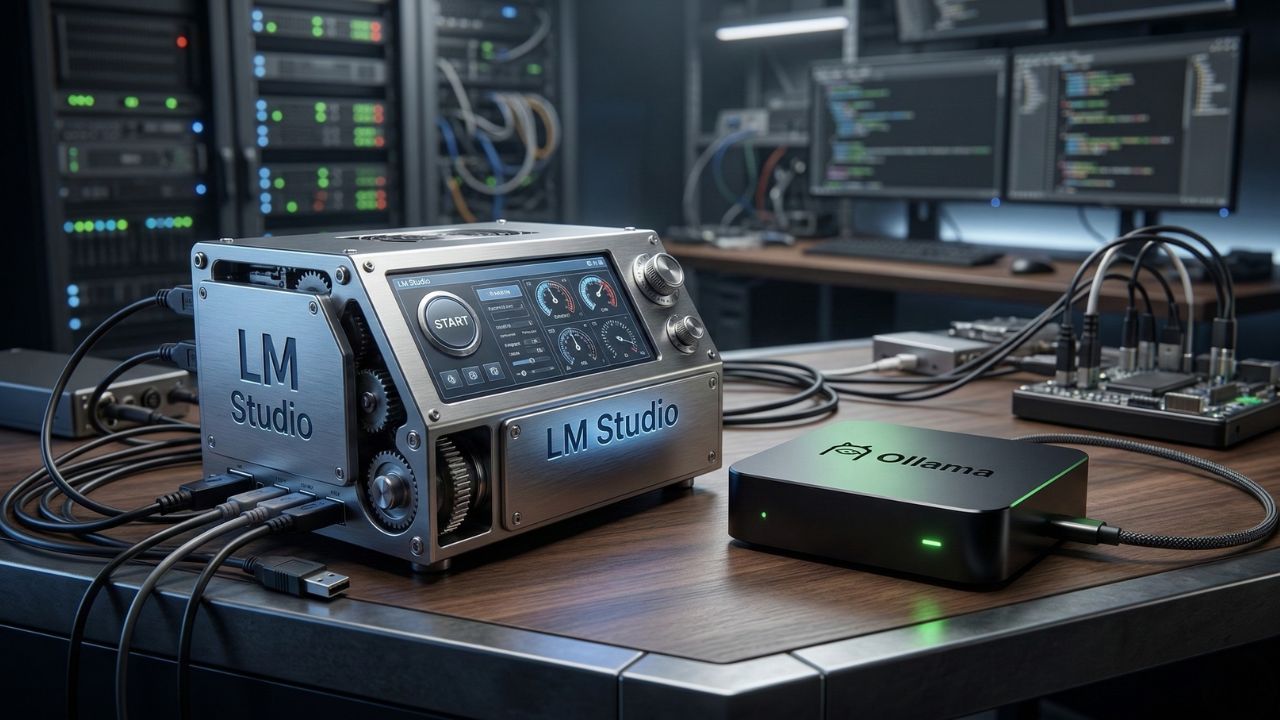
Quick Summary: Key Takeaways
- Most developers inadvertently cripple their CLI workflows by prioritizing a pretty UI for local AI runners.
- LM Studio's resource-heavy GUI steals vital memory from IDEs, Docker, and browsers, causing unnecessary system overhead.
- Ollama operates as a lightweight, headless daemon that runs invisibly in the background.
- Manual API server management in GUI apps creates massive friction, forcing context switching that breaks your coding flow.
- Transitioning to a CLI-first local runner optimizes IDE integration and unlocks 2x faster coding capabilities.
Most developers choose their local AI runner based entirely on a pretty UI, unknowingly crippling their CLI workflows in the process. While graphical interfaces are excellent for initial exploration, they become a severe bottleneck in a mature engineering pipeline.
As detailed in our master guide on Why Your OpenRouter API Habit is a Security Nightmare, transitioning to local AI is essential for protecting enterprise IP. But simply moving to local inference isn't enough; how you run those models dictates your daily efficiency.
The real winner in the Ollama vs. LM Studio debate comes down to seamless API orchestration. Relying on heavy, graphical interfaces instead of background daemons creates unnecessary friction in your daily coding environment.
Executive Snapshot: The Bottom Line
The Core Debate: The Ollama vs LM Studio discussion settles the ultimate local IDE integration question for professional developers.
System Overhead: LM Studio relies on a resource-heavy GUI, while Ollama operates as a lightweight, headless daemon, preserving system resources for your actual workloads.
Compliance & Quality: Streamlining local inference supports standardizing developer workflows, aligning seamlessly with strict organizational policies like ISO 9001 for Dev Environments.
The Goal: Optimize your local AI runner to eliminate context switching and unlock true ambient assistance.
The GUI Tax on Your Development Environment
When initially setting up local AI, the appeal of a graphical interface is undeniable. LM Studio allows you to search, click, and download complex models with zero terminal commands, making it incredibly accessible for beginners mapping out the landscape of open-weights models.
However, once integrated into a professional developer's daily workflow, this visual layer becomes a massive structural bottleneck.
Every megabyte of RAM consumed by an Electron-based or heavy web-view GUI is memory explicitly stolen from your actual IDE (like VS Code or Cursor), active Docker containers, and browser tabs. Operating local LLMs already requires strict system resource management. When your runner demands constant desktop visibility and manual intervention to stay active, it causes lag and fragments your attention.
"The true measure of an AI runner's value isn't how easily you can download a model, but how effortlessly it stays out of your way while serving inference requests to your primary coding tools."
The goal of a local AI assistant is to be ambient—an ever-present utility that responds instantly to IDE prompts without requiring you to manage a separate application window.
Actionable Framework: Optimizing Your IDE Integration
To achieve seamless productivity, you must transition from treating AI as an external desktop application to treating it as a core system service. Here is how elite engineering teams configure their local stack for maximum output:
- Embrace the Daemon: Install a CLI-first runner like Ollama that operates quietly in the background, starting automatically with your operating system.
- Bind the API: Configure the runner to expose a local port (typically
localhost:11434) that is perpetually listening for API calls. - Connect the IDE: Install workflow extensions like Continue.dev or use the AI-native Cursor IDE, pointing the custom base URL directly to your local daemon endpoint.
If your organizational needs outgrow a single machine and you must distribute these local API endpoints across a broader team, explore the best OpenRouter alternatives for private AI to manage internal routing securely and efficiently.
Runner Comparison: By the Numbers
| Feature Profile | LM Studio | Ollama |
|---|---|---|
| Interface Priority | Graphical User Interface (GUI) | Command Line Interface (CLI) |
| Execution Mode | Active Desktop Application | Background System Daemon |
| API Server Management | Manual (Requires clicking "Start Server") | Automated (Always listening on port) |
| Resource Overhead | Moderate to High | Extremely Low |
The Hidden Trap: Manual API Server Management
The most insidious productivity killer in a localized AI setup is manual server orchestration. LM Studio requires users to actively navigate to the server tab and initiate the local host session.
If the application accidentally closes, or if the system reboots, the server dies. As a result, your IDE suddenly loses its coding assistant, forcing you to break focus, open the runner application, and manually restart the service. This constant babysitting fundamentally breaks the promise of ambient AI assistance.
Ollama bypasses this bottleneck entirely. By running as a background service, it guarantees that your API endpoints are always available, mimicking the "always-on" reliability of a cloud provider but without the associated data privacy risks. This headless approach is what truly enables engineers to orchestrate complex tasks without interruption.
Conclusion
Choosing the right local AI runner is less about the language models themselves and entirely about how the software integrates into your existing development environment.
Relying on a GUI-heavy application introduces friction and wastes critical system resources, ultimately hurting your engineering velocity. Adopting a headless, CLI-first approach like Ollama aligns perfectly with modern DevOps practices, keeping your focus exactly where it belongs: on shipping code.
Frequently Asked Questions (FAQ)
Yes, LM Studio offers an intuitive visual interface making it easier for beginners to search, download, and test models without command-line knowledge. However, this ease of use sacrifices the advanced automation and deep workflow integration required by professional developers.
Ollama generally uses significantly less RAM because it runs as a lightweight headless background service. LM Studio requires a full graphical user interface, which consumes extra memory just to keep the application window running alongside your loaded model.
No, LM Studio requires the main application window to remain open to host its local server. In contrast, Ollama operates natively as a background daemon, freeing up screen space and seamlessly serving API requests to your IDE.
To connect them, you must manually start the local server within the LM Studio GUI. Next, configure Cursor's API settings to point to LM Studio's localhost port, usually 1234, ensuring it functions as an OpenAI-compatible endpoint.
Yes, Ollama is built entirely CLI-first, offering robust commands for model management and execution directly from your terminal. LM Studio focuses on its GUI, making headless server management and automated scripting far more difficult.
Both tools use similar backend technologies (like llama.cpp), meaning raw token generation speeds are virtually identical. However, Ollama's lower system overhead can result in smoother overall performance on memory-constrained developer machines.
Yes, you can run both simultaneously if they are configured to listen on different local ports and you have sufficient RAM/VRAM. However, managing two separate runners is generally inefficient and unnecessary for daily developer workflows.
Navigate to the local server tab within the LM Studio interface, configure your desired port (the default is usually 1234), and click 'Start Server'. This exposes an OpenAI-compatible API endpoint on your machine.
No, LM Studio is a proprietary, closed-source application, though it relies on open-source underlying technologies. Ollama is completely open-source, allowing for deeper community integrations and transparent code audits for security-conscious engineering teams.
Both platforms fully support the GGUF model format. LM Studio offers a convenient built-in browser to find and download them from Hugging Face, while Ollama lets you easily import custom GGUF files via a Modelfile.